
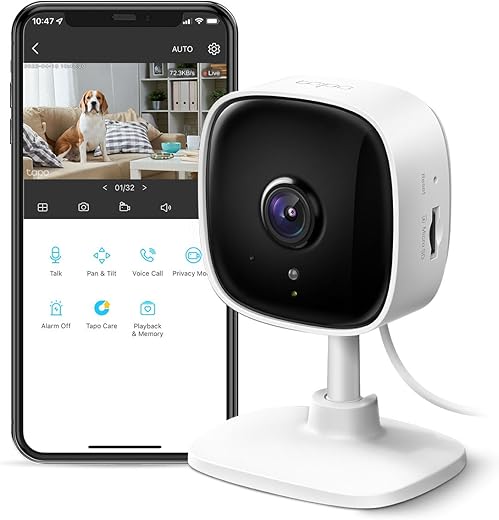
How to Install Indoor Security Cameras
This guide provides a comprehensive, step-by-step approach to installing indoor security cameras, aimed at enhancing home security and monitoring activities within your space. It covers essential aspects such as selecting the right camera for your needs, determining optimal placement for maximum coverage, and the technical steps for installation, including connecting to Wi-Fi and configuring settings. By following these instructions, you can ensure your cameras function effectively, providing peace of mind and a secure environment for your home.
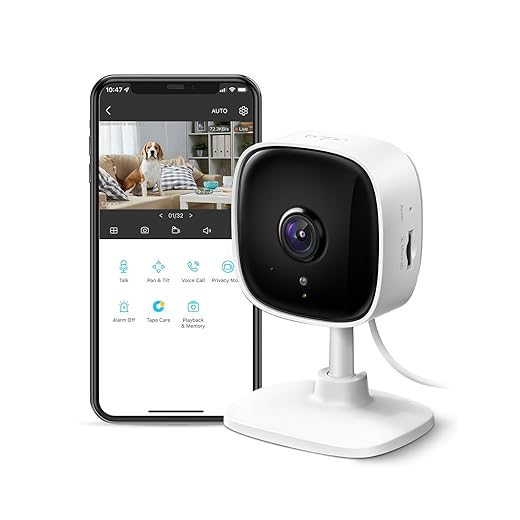


Setting Up the Blink Mini Indoor Security Camera: Initial Thoughts!
Choose the Right Camera
Research indoor security cameras that match your specific needs by comparing features. Prioritize resolution; for example, a camera with 1080p or higher provides clearer images. Evaluate the field of view; a wider angle allows you to monitor larger areas without multiple cameras. Consider night vision capabilities; look for models with infrared technology for clear footage in low light. Examine connectivity options; decide between Wi-Fi for easy installation or wired connections for more stability. Read customer reviews to gain insight into performance and reliability, ensuring the camera you choose has positive feedback.
Gather Necessary Tools and Materials
- Collect all the tools required for installation: grab a drill, screwdriver, mounting brackets, and screws.
- Ensure you have a power source nearby if your devices are wired; otherwise, gather appropriate batteries for wireless cameras.
- Double-check that you have all necessary items on hand before starting the installation process.
- Organize your workspace to make it easier to access tools and materials as you work.
Plan Camera Placement
Identify high-traffic areas and entry points in your space where you want to enhance security. Position cameras to capture clear views of these locations, ensuring they are not obstructed by furniture or decor. Place cameras at a height that makes them difficult to reach, minimizing the risk of tampering or vandalism. Test the camera angles to confirm they cover the desired areas effectively before finalizing your placements.
Install Mounting Brackets
- Gather all necessary tools, including a drill, screws, and a level.
- Align the mounting bracket with the marked spots on the wall or ceiling, ensuring it’s at the recommended height and angle.
- Drill pilot holes for the screws, being careful not to damage any wiring or plumbing behind the surface.
- Securely attach the mounting bracket by inserting the screws and tightening them with the drill, making sure the bracket is firmly in place.
Connect the Camera
Connect the power and video cables for wired cameras by plugging them securely into the corresponding ports. Ensure that the power cable is connected to a power outlet and the video cable is linked to your recording device or monitor. For wireless models, consult the camera’s manual to access the Wi-Fi settings. Choose your network from the list and input the password when prompted, making sure your camera is positioned within range of your Wi-Fi signal for optimal performance.
Configure Camera Settings
Open the mobile app or web interface to access the camera settings. Navigate to the settings menu, usually found in the sidebar or under a gear icon. Enable motion detection by toggling the feature on and adjust the sensitivity slider to suit your needs. Set up alerts by selecting the notification options that work best for you, ensuring you stay informed of any activity. Schedule recording times by choosing start and end times for your camera, and configure cloud storage preferences by selecting your desired storage plan and ensuring it’s linked to your account.
Test the Camera
Test the video feed by accessing the camera’s live stream through the app or software. Adjust the motion detection sensitivity settings and walk in front of the camera to see if it detects your movement accurately. Record a short video clip to evaluate the recording quality, ensuring that the image is clear and the audio is crisp. If any issues arise, revisit the configuration settings for adjustments.
Secure the Camera
- Tuck away all cables neatly behind walls or furniture to prevent accidental disconnection or damage.
- Use cable ties or clips to secure cables along baseboards or under desks, creating a clean and organized appearance.
- Consider using cable sleeves or conduits to further protect cables from tampering and environmental wear.
- Install cable management boxes to hide excess cable lengths and keep everything out of sight, making your setup look professional and tidy.
- For example, use Velcro straps to bundle cables together or a cable management tray underneath your desk to keep cords out of sight and prevent tripping hazards.
Final Thoughts and Tips
In conclusion, installing indoor security cameras is a straightforward process that significantly boosts your home security. By following the steps outlined in this post, you’ll be well-equipped to set up your cameras and keep an eye on what matters most. Just remember to regularly check and maintain your system for optimal performance. With a little effort, you can enjoy peace of mind knowing your home is being monitored. Happy installing!
Essential Equipment List

Maximize Your Setup
Step-by-Step Guide to Setting Up and Utilizing Indoor Security Cameras
- Sure! Here’s a friendly list of tips on how to use indoor security cameras for beginners:
- Choose the Right Location: Start by selecting areas in your home where you want to monitor activity, like entryways, living rooms, or nurseries. Make sure the camera has a clear view and is not obstructed by furniture
- Set Up the Camera: Follow the manufacturer’s instructions to set up the camera. This usually involves connecting it to Wi-Fi and downloading a companion app on your smartphone. Don’t forget to position it at a good height for optimal coverage!
- Adjust Settings: Once your camera is set up, take some time to adjust the settings according to your needs. You can customize alerts, motion sensitivity, and recording schedules to fit your lifestyle
- Test the Feed: After everything is set up, check the live feed to ensure everything is working correctly. Make sure the camera’s angle captures the desired area and that the video quality is clear
- Regularly Review Footage: Make it a habit to review recorded footage from time to time. This helps you stay informed about any unusual activity and ensures your camera is functioning properly
- I hope these tips help you get started! Enjoy the peace of mind that comes with having indoor security cameras!
Also Read: Home Automation Security Systems


About the Author: Oliver James


news via inbox
Stay updated with the latest tips and offers. Subscribe to our newsletter today!


Can anyone recommend a good indoor security camera with two-way audio? I want to be able to talk to my kids at home while I’m at work.
Look into the Nest Cam Indoor! It has fantastic two-way audio and a great app interface. Perfect for keeping in touch with your kids!
I found that using a power drill made installing the mounting brackets way easier. I was so worried about the screws stripping, but it held up really well after drilling. Just be careful not to overdo it!
Great advice! A power drill can definitely make the installation process smoother. Just be sure to use the right drill bit for the material you’re working with!
For anyone unsure about the best camera for larger spaces, I recommend the Logitech Circle View. It has a wide field of view and works well in bigger rooms!
Great recommendation! The Logitech Circle View is known for its impressive field of view and quality. Thanks for sharing your insight!
I had the hardest time figuring out the camera settings until I found the user manual online. Definitely worth a look if you’re stuck! It saved me so much time.
User manuals can be lifesavers! Glad you found one that helped. It’s always good to have that reference when setting up tech.
I followed this guide and installed the Arlo Q Plus in my living room. The setup was straightforward, and I love the live streaming feature. I can check in on my pets when I’m at work! Highly recommend it if you have fur babies.
That’s awesome to hear! The Arlo Q Plus is a solid choice for pet owners. Glad you found the guide helpful for your setup.
Success story here! I installed my Blink Mini camera last week, and I already caught a package thief on my porch. The quality is amazing, and the notifications are super quick!
Wow, that’s a great success story! Sad to hear about the package thief, but glad your camera helped catch it. Thanks for sharing your experience!
I adapted the placement step a bit. Instead of placing my camera high up on the wall, I put it on a shelf for easier access. It works great for monitoring my front door without being too obvious!
That’s a clever adaptation! Sometimes a lower placement can provide a better angle and ease of access for adjustments. Thanks for sharing!
Just a tip: when choosing an indoor security camera, consider the Ring Indoor Cam! It’s super compact and has a great night vision feature. Plus, it integrates well with other Ring devices. Don’t forget to check the privacy settings though!
Anyone else having trouble with the camera connecting to Wi-Fi? I’m using a Wyze Cam V3, and it keeps dropping the connection. What should I do?
Wi-Fi issues can be tricky! Make sure your router is close enough to the camera and check if the firmware is up to date. You might also want to try resetting the camera and reconnecting it.
For advanced tips, what’s the best way to set up motion detection without getting my camera triggered by pets? I have a small dog that seems to set mine off all the time!
Adjusting the sensitivity of the motion detection settings can help! Most cameras allow you to customize zones where you don’t want to detect motion. Give that a try!
Thanks for the suggestion! The Ring Indoor Cam is indeed a popular choice with excellent features. Always good to hear about user experiences with specific models!