
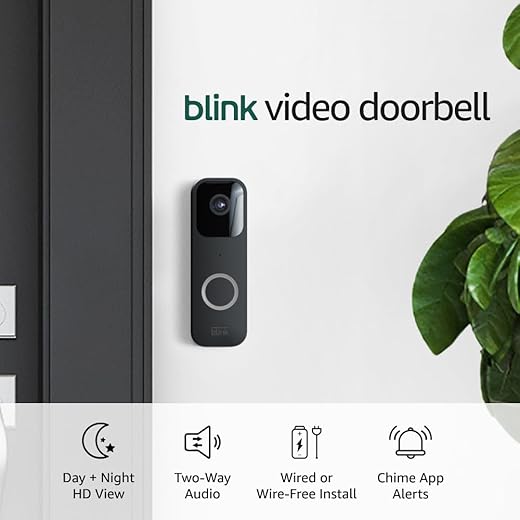
How to reset a video doorbell?
In this empathetic guide, we understand that technology can sometimes be frustrating, especially when your video doorbell isn’t working as it should. Our step-by-step instructions will help you easily reset your device, allowing you to regain control and enhance your home security once again. By following these simple steps, you’ll be able to reconnect your video doorbell to your home network and enjoy the peace of mind that comes with being able to see and communicate with your visitors remotely. Let’s get started on restoring that essential connection!


Steps to Factory Reset Your Blink Doorbell
Gather Required Tools
- Ensure you have a smartphone or tablet handy. Check that the doorbell app is installed and updated for smooth operation. For example, if you’re using a Ring doorbell, download the Ring app from your device’s app store.
- Gather a small screwdriver if your doorbell requires mounting. This may be a Phillips or flathead screwdriver, depending on your doorbell’s design. Look for any screws in the instruction manual to confirm the type needed.
- Verify your internet connection is stable. A reliable Wi-Fi signal is crucial for your doorbell to function properly. Test your connection by accessing other apps or websites before you start.
Locate the Reset Button
- Examine the back or side of your video doorbell for a small, circular button.
- Look for any labeling that clearly indicates it is the reset button.
- Press and hold the reset button for about 10 seconds until you see a flashing light, indicating the reset process has begun.
- Release the button and wait for the doorbell to reboot, which may take a minute or two.
Remove the Doorbell from Mount
Remove the video doorbell from its mounting bracket by inserting a small screwdriver into the designated slot or screw. Gently turn the screwdriver to avoid damaging the device or the mounting bracket. As you detach the doorbell, support it with your other hand to prevent it from falling. Ensure that all screws are safely removed and stored for reinstallation, if needed.
Press and Hold the Reset Button
Press and hold the reset button for about 10-15 seconds. Watch for the LED lights on the doorbell; they should start to flash, indicating that the reset process is beginning. If the lights blink in a pattern, like a quick flash followed by a pause, it means the device is successfully resetting. Keep holding the button until you see these flashes, ensuring that the reset is initiated properly.
Wait for the Doorbell to Reboot
Release the reset button and allow the doorbell to reboot. Wait patiently for one to two minutes as the device restores its factory settings. Do not interrupt the process, as it is crucial for the doorbell to start fresh. Watch for any indicator lights; they will help you know when the reboot is complete.
Reinstall the Doorbell
- Align the doorbell with the mounting bracket, ensuring the connections are properly positioned.
- Gently press the doorbell down onto the bracket until you hear a click, indicating it is securely attached.
- Check for any loose wires and make sure they are tucked away safely to avoid any damage.
- Test the doorbell by pressing it to ensure it powers on and functions correctly.
Open the Doorbell App
Open the app associated with your video doorbell on your smartphone or tablet.
- Ensure that your device is connected to a stable internet connection; this is crucial for the app to function properly.
- Tap the app icon to launch it and wait for it to load completely.
- If prompted, log in using your account credentials to access all features of the app.
- Allow any necessary permissions requested by the app, such as camera or location access, for optimal performance.
Follow the App Instructions
- Open the app on your smartphone and sign in if prompted.
- Navigate to the setup section, where you will find the option to reconnect your video doorbell.
- Follow the on-screen instructions carefully, ensuring you select the correct Wi-Fi network.
- Enter your Wi-Fi password when requested, and confirm the connection to finalize the setup.
Test the Doorbell
Press the doorbell button firmly to initiate a test. Listen for the chime or alert sound to confirm it’s working correctly. Check your smartphone or device for any notifications that indicate the doorbell has been activated. If you receive alerts, the setup is successful; if not, revisit your installation and connection settings.
Adjust Settings as Needed
Adjust notification settings by navigating to the notifications section in the app. Choose whether you want to receive alerts for new messages, friend requests, or updates. Customize video quality by selecting the video settings option; you can opt for high, medium, or low quality based on your data usage or preferences. Explore other settings like theme or layout to make the app feel more personalized and comfortable for your usage.
Final Thoughts on Resetting
In conclusion, resetting your video doorbell is a straightforward process that can significantly enhance its performance and reliability. By following the steps outlined in this post, you can quickly get your device back on track, ensuring that your home security remains top-notch. Remember, regular maintenance and occasional resets can make a world of difference in keeping your video doorbell functioning at its best!
Essential Equipment Needed

Quick Reset Solutions


About the Author: Oliver James


news via inbox
Stay updated with the latest tips and offers. Subscribe to our newsletter today!


I’m thinking of getting a Nest Hello. Can anyone recommend the best app to use for it? I want to make sure I have the right tools before I dive in!
For the Nest Hello, you’ll want to use the Google Home app. It’s pretty user-friendly and has all the features you need to manage your doorbell. Hope this helps!
I had a tough time getting the doorbell off the mount! A little tip: use a flathead screwdriver to gently pry it off if it’s stuck. It worked for me after I struggled for like 10 minutes!
Great tip! Sometimes the mounting can get a little tricky, especially if it hasn’t been removed in a while. Glad you found a solution!
Could you do a guide on the best doorbell cameras for rent apartments? I live in a place where I can’t drill holes, and I’d love to see some options that won’t break my lease!
Are there any other troubleshooting tips for those error messages that pop up during the setup? I just got a Wyze Video Doorbell, and it keeps saying ‘Connection Failed’!
I’ve gotta say, after setting up my Arlo Video Doorbell, I was blown away by how clear the video is! If anyone’s on the fence about getting one, I definitely recommend it!
Thanks for sharing your experience! The Arlo doorbell is known for its high-quality video. It’s great to see others enjoying it too!
I had to reset my August Video Doorbell twice before it finally synced with the app. Just a heads up to everyone: make sure you’re really close to the Wi-Fi during setup!
I found the steps pretty straightforward, but I had to use a different app because my doorbell is a Ring Video Doorbell Pro. The app had slightly different instructions, but I managed to figure it out. Just make sure to have the right version of the app for your model!
I followed the guide step-by-step for my Logitech Circle View Doorbell, but I’d love to see more tips on how to optimize the settings after installation. Any chance you could cover that in a future article?
Thanks for your feedback! We’ll definitely consider a follow-up article on optimizing settings for different doorbell models. Stay tuned!
After following this guide, I can finally see who’s at my door again! I used it on my Eufy Security Video Doorbell, and it worked like a charm. I really appreciate the clear steps you provided!
Awesome to hear that it worked for you! Eufy does have a solid setup, and we’re glad our guide helped you get back to seeing who’s at your door!
I’m a bit confused about the reset button. Is it always in the same spot on different models? I have a Blink Video Doorbell, and I can’t seem to find it.