

This guide offers a concise, step-by-step process for resetting your Ring Video Doorbell, a smart home device that enables users to interact with visitors through their smartphones. Whether you’re troubleshooting problems or preparing the device for a new setup, the guide outlines the necessary steps to ensure a successful reset, helping you restore your doorbell to its original settings and functionality.


Restore Ring Video Doorbell to Factory Settings
Locate the Reset Button
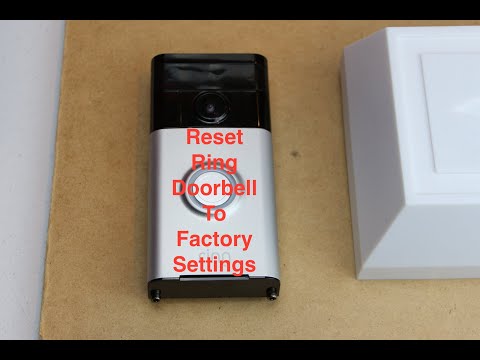
Remove the Ring Video Doorbell from its mounting bracket. Look for the reset button, which is usually found on the back or side of the device. Press and hold the reset button for about 15 seconds until you see the light on the front flash. Release the button and wait for the doorbell to restart, indicating that it has been reset.
Power On the Device
Check the battery level of your Ring Video Doorbell. If it’s running low, make sure to charge it by connecting it to a power source using the provided charging cable. If your doorbell is hardwired, ensure that it’s properly connected to the existing doorbell system, verifying that the wires are securely attached. Look for a solid blue light on the front of the device, indicating that it’s powered on and ready to go!
Press and Hold the Reset Button
Insert a small tool, like a pin or a paperclip, into the reset button hole. Press and hold the reset button firmly for about 15 seconds. Watch for the front light of the doorbell; it should flash several times during this process. Keep holding the button until you see the flashes, indicating that the reset is in progress.
Wait for the Device to Reset
Release the reset button after holding it for 15 seconds. Wait patiently for the Ring Video Doorbell to complete the reset process. Observe the light on the device; it will flash in a circular pattern, indicating that the reset is underway. Keep an eye on the light until it stops flashing, which means the reset is finished and the device is ready for setup.
Reconnect to Wi-Fi
Open the Ring app on your smartphone. Once the app is launched, it will guide you through the process of reconnecting your Ring Video Doorbell to your Wi-Fi network. Follow the on-screen prompts carefully—tap on the option that says “Set Up a Device” or something similar. When prompted, select your Wi-Fi network from the list displayed.
Enter your Wi-Fi password accurately; if you’re unsure, double-check it to avoid any errors. After entering the password, tap “Connect,” and wait for the app to confirm that your Ring Video Doorbell is successfully reconnected. If you encounter any issues, ensure that your Wi-Fi signal is strong and try again.
Set Up Your Device
- Open the Ring app on your device once you are connected to Wi-Fi.
- Follow the on-screen prompts to start the setup process.
- Name your device; for example, you might choose “Front Door Camera” or “Backyard Floodlight.”
- Adjust your settings based on personal preferences; consider enabling motion alerts or scheduling specific times for your device to be active.
- Review your settings carefully and make any necessary changes before completing the process.
Test the Device
Press the doorbell button to check if the Ring Video Doorbell is functioning correctly. Watch for the notification on your smartphone; it should alert you that someone is at the door. Next, walk in front of the motion sensor to trigger it. Again, look for a notification on your phone confirming that motion has been detected. If you don’t receive notifications, revisit the app settings to ensure notifications are enabled and check your Wi-Fi connection if needed.
Check Video Quality
Open the Ring app on your device and tap on the camera icon for your desired camera. Access the live view feature and observe the video feed. Ensure that the image is clear and that you can see any details you need. Test the two-way audio feature by pressing the microphone icon and speaking; listen for your voice on the other end to confirm functionality.
Adjust Settings as Needed
Open the Ring app and navigate to the settings menu to customize your security features. Adjust the following options for a tailored experience:
- Motion Detection: Enable or disable motion alerts based on your preferences. Fine-tune the motion sensitivity to avoid unnecessary notifications.
- Video Recording: Set the duration for video recordings when motion is detected. Choose whether to save these recordings for later review.
- Notification Preferences: Decide how you want to receive alerts—via push notifications, emails, or both. This ensures you stay informed without being overwhelmed.
Explore each setting and make adjustments that best fit your lifestyle and security needs!
Secure the Device
Mount your Ring Video Doorbell securely onto its bracket by aligning it with the designated grooves. Push down firmly until you hear a click, indicating that it is locked in place. Check that the doorbell is flush against the wall and doesn’t wobble, which can signal improper installation. Use the included security screws to fasten the device more firmly, preventing it from being easily removed or tampered with.
Final Steps to Reset
In conclusion, resetting your Ring Video Doorbell is a simple yet effective way to troubleshoot and enhance your device’s performance. By following the steps I’ve shared, you can quickly get back to enjoying the peace of mind that comes with having a fully functioning doorbell. If you have any further questions or need assistance, feel free to reach out. Happy monitoring!
Essential Supplies Needed

Simple Reset Steps
Step-by-Step Guide to Setting Up and Operating Your Ring Video Doorbell
- Installation: Begin by charging the battery and mounting the doorbell at eye level next to your door. Follow the included instructions for a secure fit
- Download the App: Get the Ring app on your smartphone. It’s available for both iOS and Android. Create an account or log in if you already have one
- Connect to Wi-Fi: Open the app and follow the prompts to connect your Ring Video Doorbell to your home Wi-Fi network. Make sure you have your Wi-Fi password handy!
- Customize Settings: Once connected, you can customize settings like motion alerts, video recording preferences, and privacy zones directly in the app
- Test It Out: Have someone ring the doorbell or walk by to test the motion detection and the live video feed. This helps ensure everything is working smoothly!
- Feel free to ask if you have any more questions!
Common Questions About Your Ring Video Doorbell
To access the live feed from your Ring Video Doorbell, you can follow these steps:
- Open the Ring App: Make sure you have the Ring app installed on your smartphone or tablet. Log in to your account if you haven’t already.
- Select Your Device: On the main dashboard, locate and tap on your Ring Video Doorbell.
- View Live Feed: Once you’re on your device’s page, you should see a “Live View” button. Tap it, and you’ll be able to see the live video feed from your doorbell camera.
- Ensure Connection: Make sure your device has a good internet connection, either through Wi-Fi or cellular data, to ensure smooth streaming.
That’s it! You can now monitor your front door in real time. If you encounter any issues, checking your internet connection or restarting the app can often help.
The two-way audio feature on the Ring Video Doorbell allows me to communicate with visitors at my door through my smartphone or tablet. Here’s how it works:
When someone rings the doorbell or triggers the motion sensors, I receive a notification on my device. I can then open the Ring app, which gives me a live video feed of the person at my door. What’s really cool is that I can also use the app to speak to them in real-time. The doorbell has a built-in speaker and microphone, so my voice comes through the speaker on the doorbell, and I can hear the visitor’s responses through my device. This feature is great for answering questions, providing instructions, or just chatting with someone at the door, even when I’m not home.
Yes, the Ring Video Doorbell does have night vision capabilities. It uses infrared LED technology to provide clear video footage in low-light conditions, allowing you to see who is at your door even after dark. This feature is really helpful for maintaining security during the nighttime!