

This guide offers a comprehensive step-by-step approach to integrating your smart doorbell with various smart home devices, enhancing both security and convenience in your home. It covers essential connections to devices such as smart lights, security cameras, and voice assistants, ensuring a cohesive smart home ecosystem. By following these instructions, users can effectively monitor their front door, receive real-time alerts, and control their smart devices from a single platform, ultimately creating a seamless and efficient living experience.


My Journey to Creating the Ultimate Smart Home: Lessons Learned and Mistakes Made
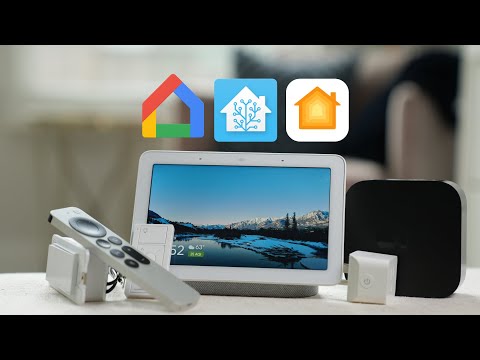
Check Compatibility
Check the compatibility of your smart doorbell with your existing smart home devices. Research the specifications of your doorbell model and verify if it works with ecosystems like Google Home, Amazon Alexa, or Apple HomeKit. For example, if you use Alexa, ensure your doorbell has the “Works with Alexa” label. Look for integration guides on the manufacturer’s website or user forums for assistance in connecting your devices seamlessly.
Download the Necessary Apps
Search for the relevant smart home apps in your smartphone’s app store. Look for the manufacturer’s app specific to your doorbell, as well as the app for your smart home ecosystem, like Google Home or Amazon Alexa. Download and install each app, ensuring you have the latest version for optimal performance. Open each app and follow the on-screen instructions to set up your devices and connect them to your home network.
Connect Your Smart Doorbell to Wi-Fi
Read the manufacturer’s instructions carefully and locate the section on connecting to Wi-Fi. Access the settings on your smart doorbell, usually via a dedicated app on your smartphone. Select the Wi-Fi option and choose your home network from the list. Enter your Wi-Fi password when prompted, and confirm the connection to ensure your smart doorbell can communicate effectively with other devices.
Add Smart Doorbell to Smart Home App
Open your smart home app. Tap on the option to add a new device. Choose your smart doorbell from the list of compatible devices. Follow the on-screen setup instructions to complete the installation process. Ensure your doorbell is powered on and connected to your Wi-Fi network for a smooth setup. Test the doorbell after setup to confirm it’s working correctly with your app.
Integrate with Voice Assistants
Enable the skill for Alexa or the action for Google Assistant by opening the respective app on your smartphone. Search for your smart doorbell’s skill or action in the app’s directory. Once you find it, tap “Enable” or “Add,” and follow the prompts to link your smart doorbell account. After linking, use voice commands like “Alexa, show me the front door camera” or “Hey Google, is anyone at the door?” to control your smart doorbell hands-free.
Set Up Routines and Automations
Create a routine in your smart home app that triggers notifications when someone rings your smart doorbell. Open the app and navigate to the automation section, then select “Add Automation.” Choose the smart doorbell as the trigger and set the action to send a notification to your phone.
Incorporate outdoor lights by adding another action to your routine. Select the outdoor lights in the app, then choose the option to turn them on when the doorbell rings. This way, you’ll not only receive a notification but also illuminate your entryway for added security and convenience!
Test the Integration
Ring the doorbell and observe if your smartphone receives a notification. Check if your smart home devices, like lights or cameras, activate as intended. For instance, ensure that the porch light turns on automatically when the doorbell is pressed, or that your security camera starts recording. If notifications are delayed or devices do not respond, revisit your integration settings to troubleshoot any issues.
Troubleshoot If Necessary
Check the manufacturer’s app or online support resources if the integration is not functioning as expected. Search for the troubleshooting sections, as they often contain valuable solutions tailored for common issues. Follow the step-by-step instructions provided to diagnose the problem and implement any suggested fixes. Don’t hesitate to reach out to customer support if the resources don’t resolve your issue; they can provide further assistance.
Seamless Smart Home Harmony
In conclusion, integrating your smart doorbell with other smart home devices can significantly enhance your home automation and security. By following the steps outlined in this post, you’ll create a seamless and efficient system that works together to keep you informed and protected. Embrace the convenience and peace of mind that a connected home offers—you’ll wonder how you ever lived without it!
Essential Gear List
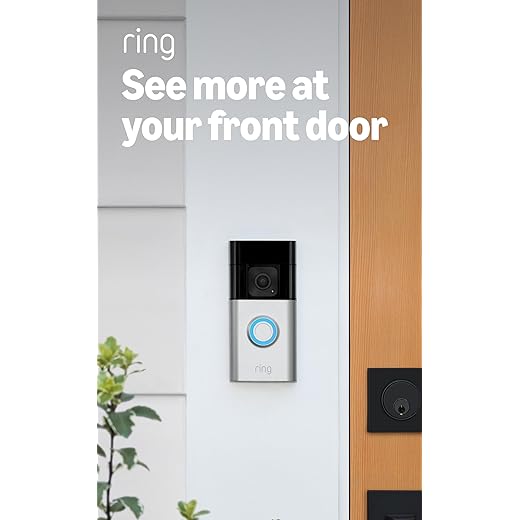
Seamless Connectivity Solutions
Step-by-Step Guide to Setting Up and Maximizing Your Smart Doorbell Experience
- Installation: Start by following the manufacturer’s instructions to install your smart doorbell. Most models can be mounted on your existing doorbell wiring or can be powered by batteries
- Connect to Wi-Fi: Once installed, connect your smart doorbell to your home Wi-Fi network using the accompanying app on your smartphone. This is essential for remote access and notifications
- Set Up Notifications: Customize your notification settings in the app. You can choose to receive alerts when someone rings the doorbell or when motion is detected, ensuring you never miss a visitor
- Use the App: Familiarize yourself with the app features. Most smart doorbells allow you to view a live video feed, communicate with visitors through two-way audio, and even record footage
- Explore Additional Features: Many smart doorbells come with extra features like night vision, cloud storage options, and integration with other smart home devices. Take some time to explore and configure these to enhance your experience!
- I hope this helps you get started with your smart doorbell!